How to read a WhatsApp export from your iPhone on a computer
Exporting a chat on an iPhone takes a few taps. The harder part is what to do with the file afterwards, because on its own it is a plain text file that does not look much like a conversation. This guide covers moving the export across to your computer and opening it so it reads the way you remember, with the file staying on your own device the whole way.
On this page
What the iPhone export gives you
On an iPhone you export a chat by opening the conversation, tapping the contact or group name at the top, scrolling down to Export Chat, and choosing whether to include media. WhatsApp then bundles the conversation into a file and hands it to the share sheet.
If you include media, you get a .zip holding a _chat.txt alongside every photo, video, and voice note from the thread. If you leave media out, you get the _chat.txt on its own. Either way the text file is the heart of it: every message with its sender and timestamp, in the order they were sent.
Worth knowing
Including media makes the export a great deal larger and slower to produce, and WhatsApp puts a ceiling on how much an export can hold, so a very long thread may not come across in full. It is worth a look at the start of the file to see how far back it reaches. Either way the export is only a copy: nothing is removed from the chat on your phone.
Getting it onto your computer
The export lands on your phone first, so the next step is moving it across. The share sheet appears immediately after the export finishes, and the simplest route is to mail the file to yourself, then open the mail on your computer and download the attachment. If both devices are Apple, AirDrop is quicker and keeps it off email entirely. Saving to a cloud drive such as iCloud Drive, Google Drive, or Dropbox works just as well, and so does a cable. Any of these is fine, so use whichever you already have set up.
Why the raw file is hard to read
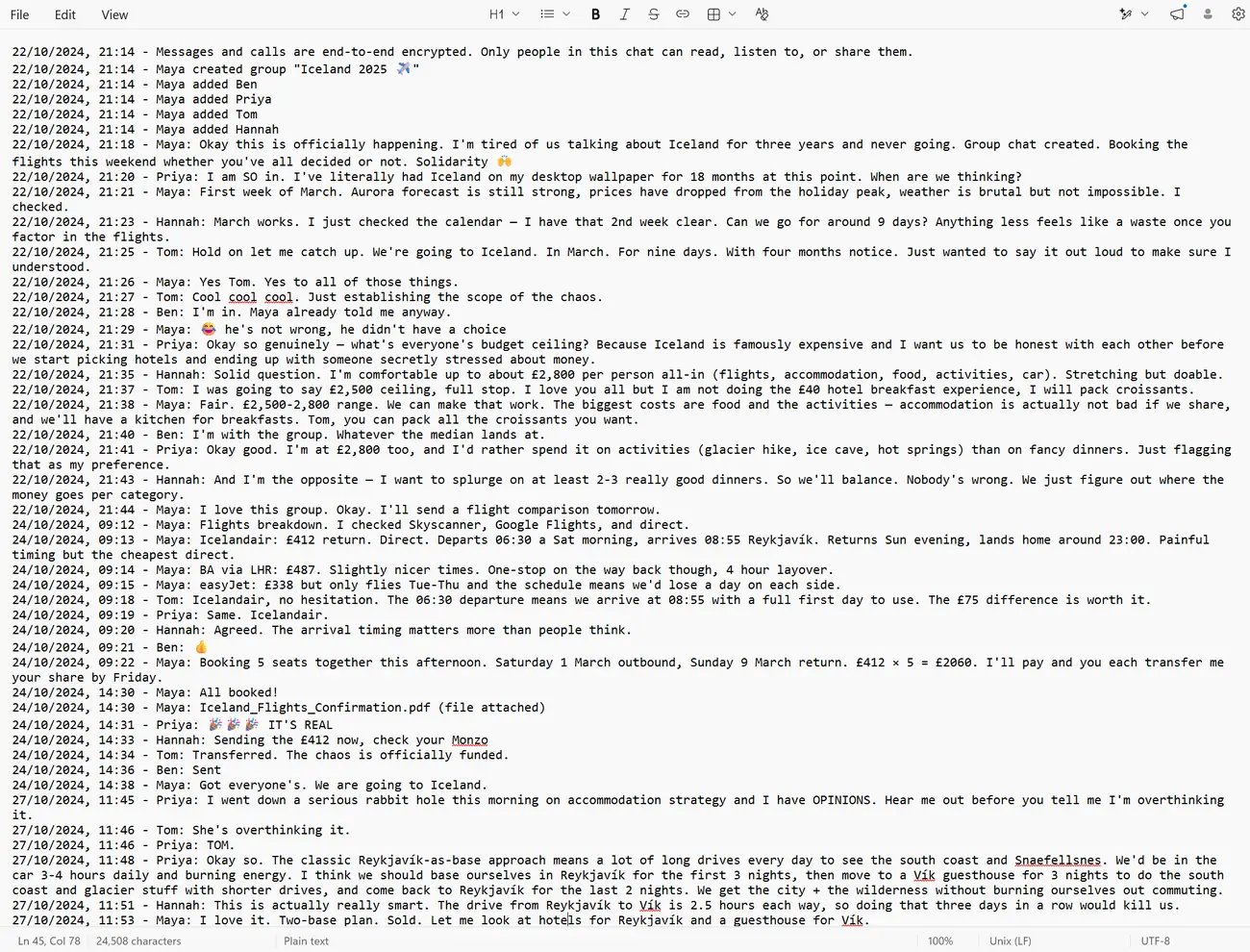
Open the _chat.txt directly and the problem becomes obvious. It is one long stream of lines, each stamped with a date and a name, with nothing separating one speaker from another and no sense of a back and forth. Photos and voice notes appear as filenames pointing at other files in the zip rather than as the images and audio themselves. Everything is there, but it reads like a log rather than a conversation, and searching it in a text editor is slow going. That gap is what a viewer fills.
Opening it without uploading it
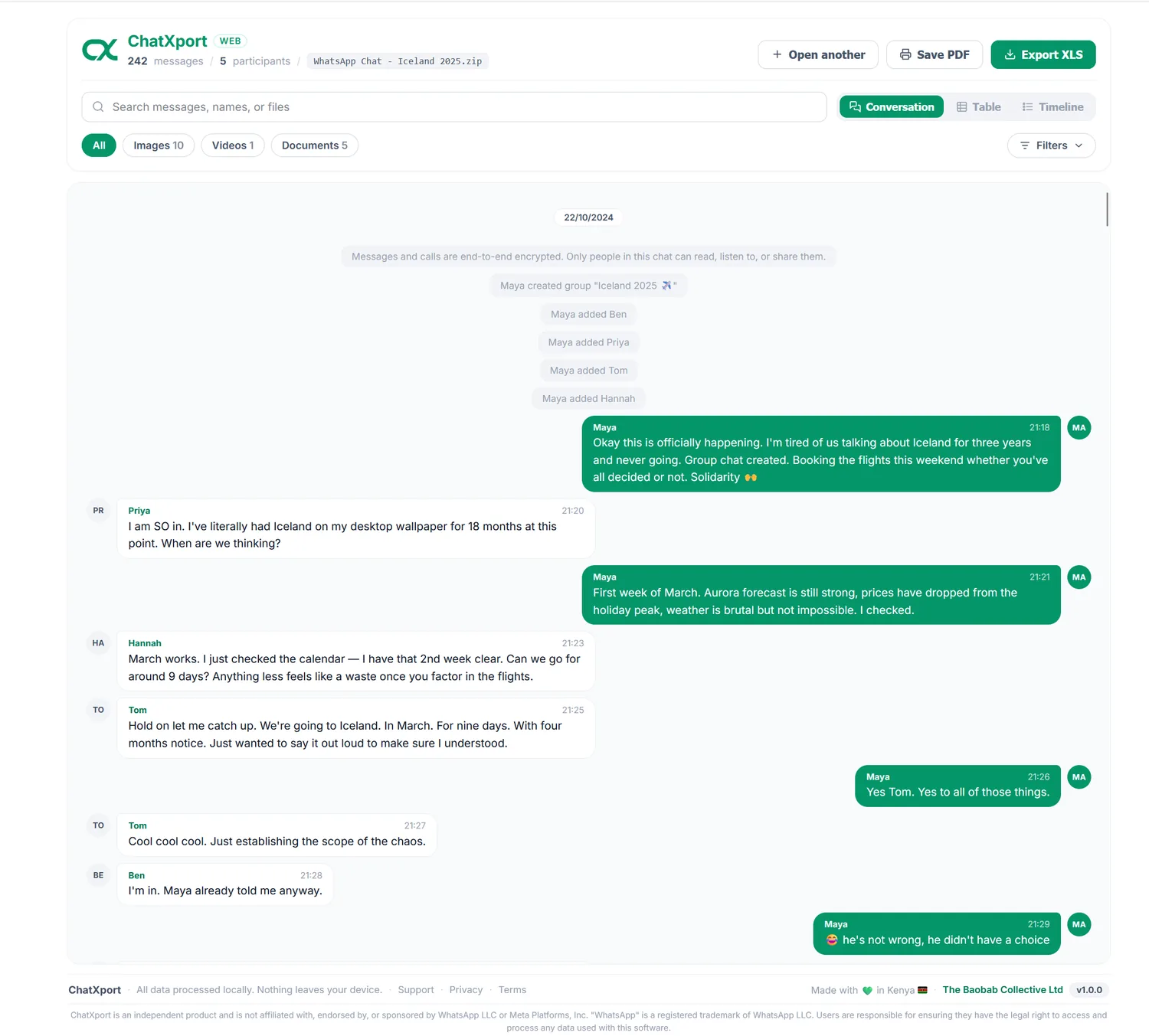
A viewer takes the raw export and lays it back out as the conversation it was, each person on their own side, media shown in place. The thing worth caring about is where that work happens. Plenty of online viewers ask you to upload the file to their server first, which hands your entire conversation to a third party you have no way to audit. For a group chat about football fixtures that may not matter. For a family thread, a workplace dispute, or anything tied to a legal matter, it very much does.
ChatXport works the other way around. The export is opened and read on your own device, inside the browser tab, and the page makes no network connection once it has loaded. There is no account and no upload, which means the conversation never goes anywhere.
Open your export here
Drop in the file and read the whole conversation. The first 300 messages are free.
Open ChatXportWhat you can do once it opens
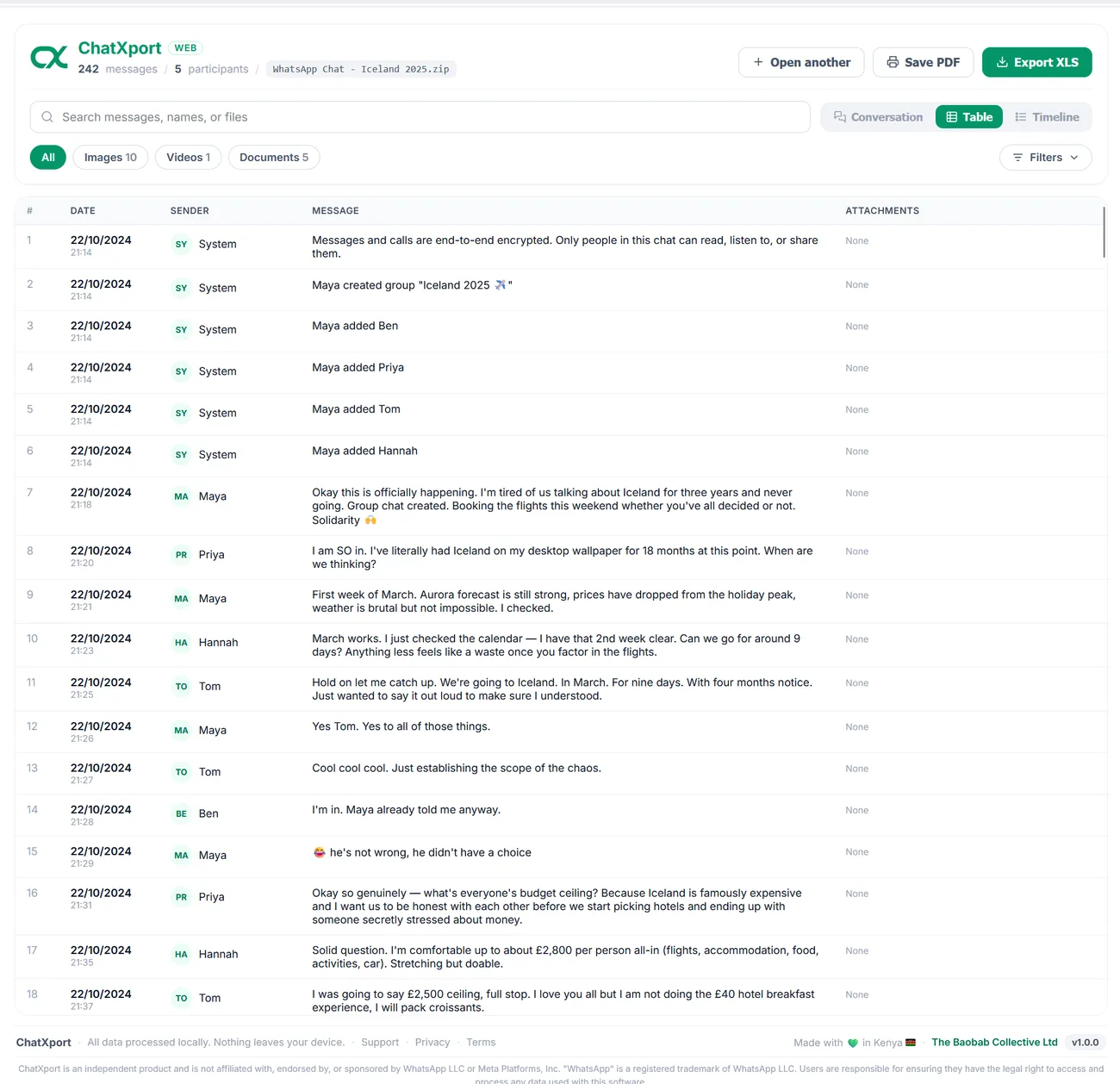
Reading it is only the start. The table view lays every message out as a row with its date, sender, and attachments, which is the one you want when you are counting, scanning, or putting together a record of what was said.
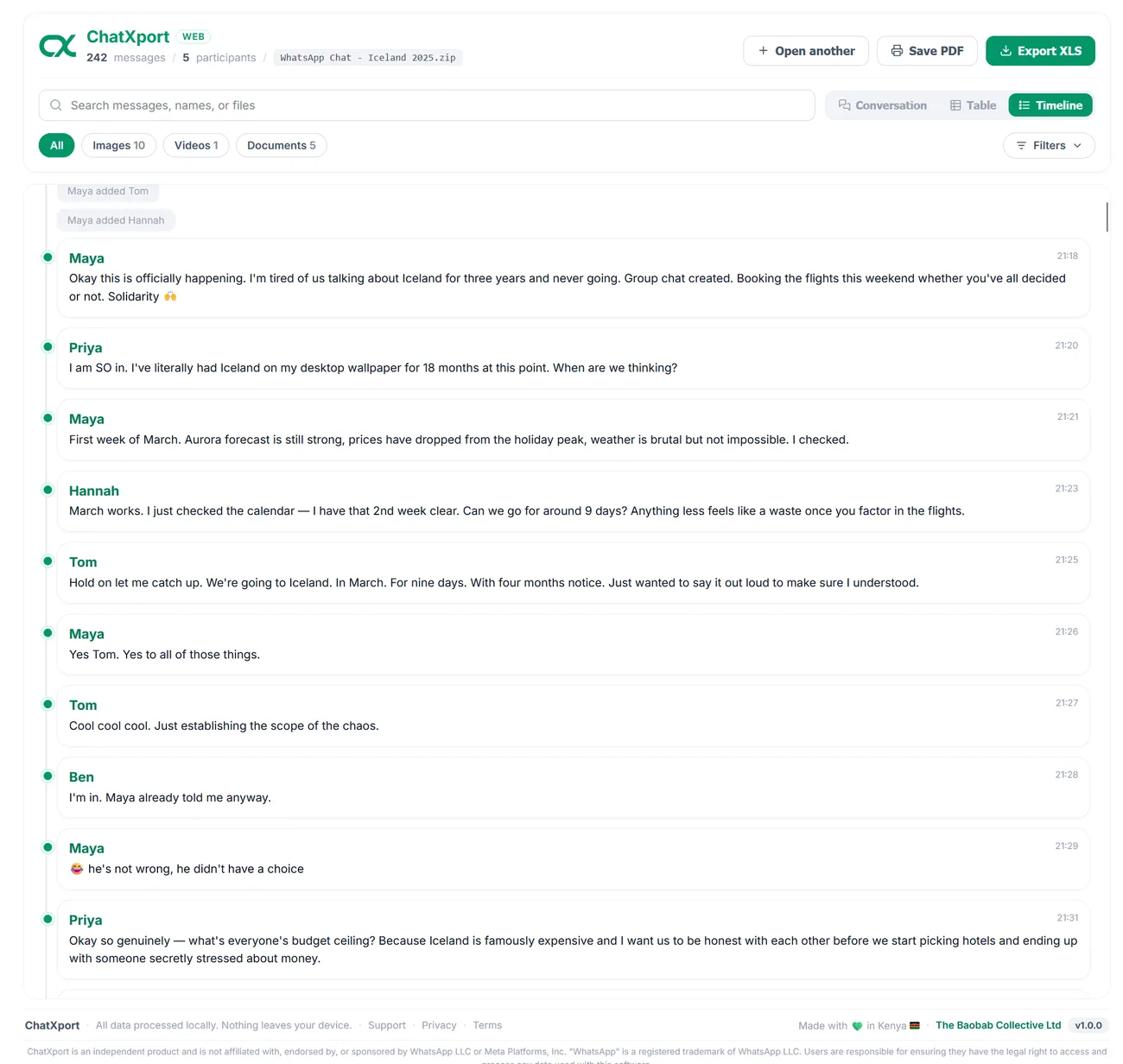
The timeline view groups everything in sequence down a single spine, which helps when you are trying to follow how a day unfolded or find what was said around a particular date.
Across all three, search runs over every message, sender name, and attachment filename, with filters for images, videos, and documents, so finding one thing in a thread spanning years takes seconds rather than scrolling. When you want a copy to keep or send on, you can save the whole conversation as a clean PDF or an Excel spreadsheet.
Browser or desktop app
There are two ways to open an export, and the right one depends on how often you do it. The browser version needs nothing installed, which suits a one-off: move the file across, open it, read it. The ChatXport desktop app for Windows is a one-time purchase built for people who work with exports regularly, adding permanent local storage with no message limit, along with workspaces, cross-chat search, bookmarks, and notes. Both keep the chat entirely on your device.